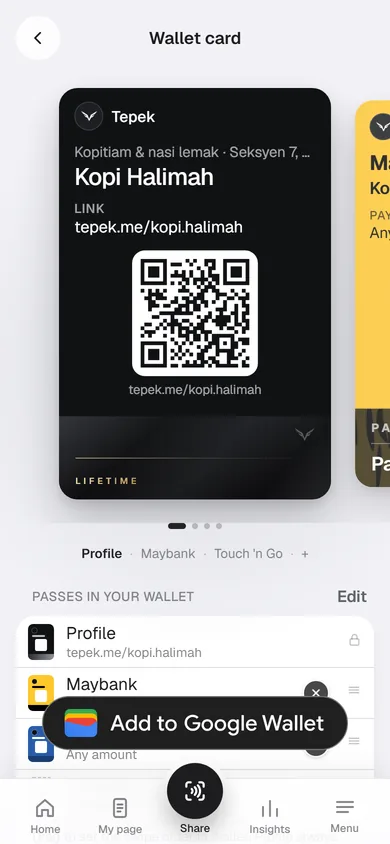
Customers ask the same two things at the counter: “How do I find you again?” and “Can I pay by DuitNow?” With Lifetime, Tepek answers both from your phone. Your page becomes a pass in Google Wallet with its QR, and the receive money QR from your bank app becomes a Pay me pass right next to it. Open your wallet, swipe, hold the phone out.
What you get
Two kinds of pass, kept together in Google Wallet as one stack:
- The profile pass: your name, your headline, your
tepek.melink and a QR. The QR opens your page on any phone camera, and Insights counts those visits as QR scan. - Up to 3 Pay me passes: each one in your bank’s colour with its name, who it pays, the amount, and the QR exactly as your bank made it. People scan it with their own bank app and pay you.
The profile pass is always first; you choose the order of the Pay me passes behind it. Both are Lifetime features. On Free, the Wallet card screen shows the passes dimmed with Get Lifetime.
Step 1: get the QR from your bank app
Pay me takes the QR your bank or e-wallet shows for receiving money: DuitNow QR, or any other Malaysian bank payment QR in the same standard format. Tepek does not make a QR for you, and it never asks for your bank login.
- Open your bank app.
- Find Receive money or My QR (each bank names it a little differently).
- Save the QR, or take a screenshot of it.
A QR without an amount lets each customer type what they owe. A QR with an amount saved into it makes everyone who scans it pay exactly that, which suits a set price but nothing else. If you want both, save two QRs in your bank app and add both.
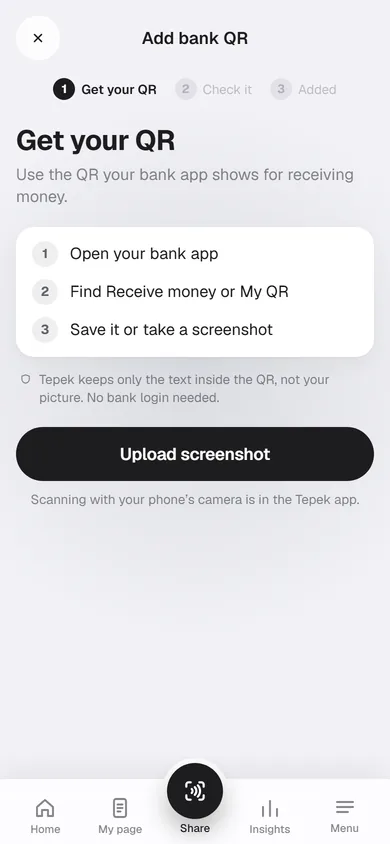
Step 2: add it as a Pay me pass
Signed in at tepek.me/app, open Wallet card & Pay me under My page in the menu (the Tepek app has the same item). Press Add bank QR, then:
- Upload screenshot and pick the picture of your QR. On the website the QR is read in your browser; in the Tepek app you can also scan it with the camera.
- Tepek checks it. A picture with no QR, a QR that is not a bank payment QR, or one that looks damaged is refused with the reason, so you can try another.
- Check it: under PAYS TO you see the name the QR pays, and whether the customer enters the amount or it is fixed. Make sure this is your account.
- Pick your bank or e-wallet from the 21 in the list (search helps), or Other and a colour. This only sets the pass’s colour and name; the QR itself decides where the money goes.
- Press Add, and the pass is ready.
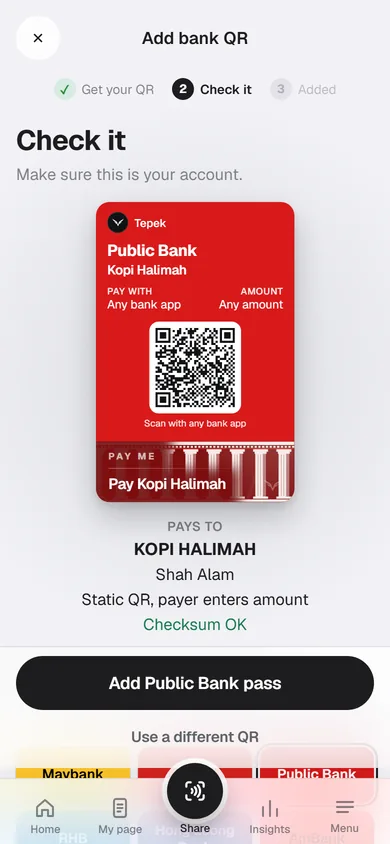
Tepek keeps only the text inside the QR, never your picture. That text is what the pass shows, and it never appears on your public page.
Step 3: add the passes to Google Wallet
Back on the Wallet card screen, press Add to Google Wallet. Google’s own page opens in the same tab; on an Android phone it hands over to the Google Wallet app. Finish there, and the profile pass and every Pay me pass are in your wallet together.
You do this once. A bank QR you add later joins your stack by itself, and when you change your name or headline on your page, the profile pass follows. The pass shows your Main card’s page, so the QR always opens tepek.me/yourname.
Apple Wallet is coming soon; today the passes are for Google Wallet.
Taking a payment at the counter
When a customer asks to pay by DuitNow, open Google Wallet, swipe to your Pay me pass and turn the phone round. They scan it with their bank app, check the name, type the amount if your QR has none, and pay. The money goes from their bank to yours; Tepek only shows your QR and never touches the payment. Check that the payment arrived in your own bank app, as you would with a printed QR.
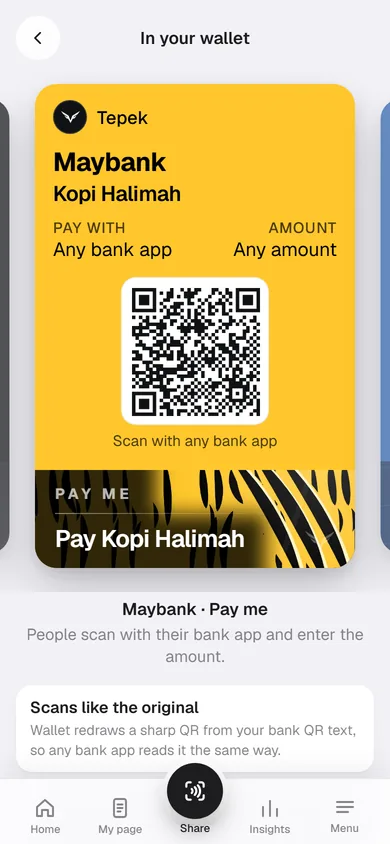
When someone asks for your page instead, swipe back to the profile pass and let them scan that QR with their camera. They land on your page with your menu, WhatsApp and Save contact, and the visit shows up as a QR scan in Insights.
Where it helps
- A kopitiam or a stall: DuitNow at the counter without hunting for the printed QR, and the menu page for regulars.
- A freelancer: in a meeting, the profile pass shares your page and contact; the Pay me pass takes the deposit.
- A wedding couple: the kad kahwin can carry your salam kaut QR inside the invite, and the same bank QR as a Pay me pass is on your phone at the reception.
Change, reorder or remove
Under Passes in your wallet, drag the Pay me passes into the order you want, or press Edit and move them up and down. The profile pass always stays first. The X on a row removes that QR at once, with Undo for a few seconds. A removed QR’s pass stops working: Google Wallet moves it to your expired passes and its QR is taken off it. Your other passes stay as they are.
Got a new QR from your bank? Remove the old one and add the new one, and your stack follows. For more ways to share your page, see Share your page with a QR code, and for what Lifetime includes, see Pricing.