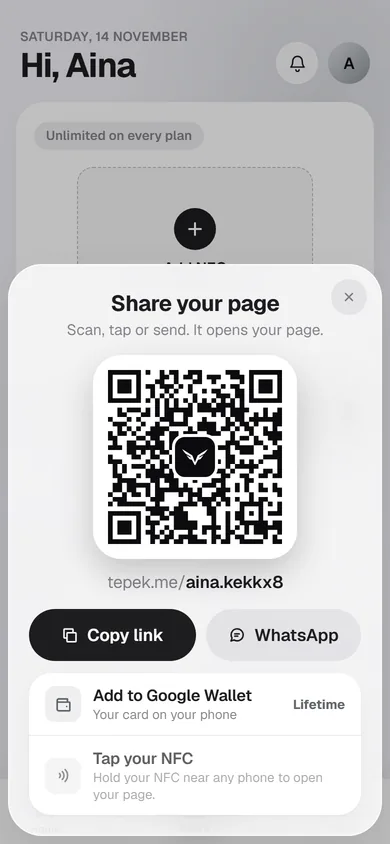
People find you in person too: at your stall, on a parcel, at an event. A QR code lets them open your page with the phone camera they already have. Tepek makes one for you, and counts every scan separately so you can see whether your printed codes work.
Open the Share sheet
Signed in, press Share my page on the bar of your account. The sheet that opens is called Share your page and holds:
- The QR code for your page, with the Tepek symbol in the middle. The code is made to be read even with the symbol covering part of it.
- Your address,
tepek.me/yourname, under the code. - Copy link, which puts your address on the clipboard.
- WhatsApp, which opens WhatsApp with your link ready to send to anyone.
- Add to Google Wallet, your card with its QR in your phone’s wallet (Lifetime).
If you have more than one NFC, the sheet shares the one you have selected, and each NFC has its own page and its own code. Pick the right one first.
What the QR code opens
The code opens your page, the same one your link opens. It also carries a small tag (?src=qr) that tells Insights the visit came from a scan, so scans are counted apart from everything else. Whatever you change on your page later, the printed code keeps working and shows the new version: it points at your address, not at a copy of the page. The one thing that would break it is changing your username, so settle on the name before you print.
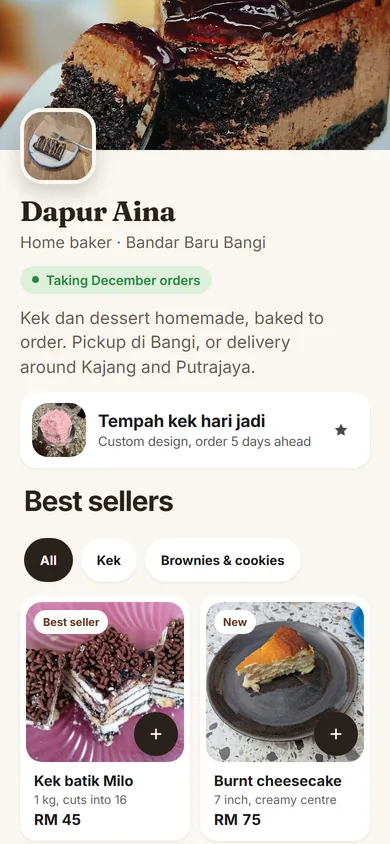
Print it
The sheet has no download button yet. To print the code:
- Open the Share sheet on your phone and take a screenshot.
- Crop the screenshot to the white square around the code. Keep a little white space on every side: scanners need it.
- Put it in your design, or print it as it is.
- Scan the printed code with your own phone camera before you print many.
Print it about 3 cm wide or more on a table card or a sticker, and larger on a banner people read from a distance. Keep it a dark code on a light background, not your brand colour on a busy photo.
Making your own code?
You can also make a QR code in a design app. Point it at your address with ?src=qr at the end:
tepek.me/yourname?src=qrInsights then counts its scans as QR scans too. Without the tag, scans of your own code are counted as Direct.
Where people scan
- On your counter or at the cashier, next to “Scan for the menu” or “Follow us”.
- On packaging and thank-you cards, so a buyer can order again or leave a review.
- On the back of a business card or a flyer.
- On a banner at a bazaar or an event booth.
Tell people what they get. A line like “Scan for today’s menu and WhatsApp orders” gives them a reason to scan.
Copy link and WhatsApp
For chats, Copy link and WhatsApp are quicker than the code. Both send your address with a tag of their own (?src=share), so Insights counts those visits as Shared link. For your Instagram or TikTok bio, type your plain address instead; Put your Tepek link in your TikTok and Instagram bio explains why.
Count the scans
Open Insights and look at Top sources on Overview, or Sources on the Visitors tab. QR scan is the number of page views that came from your code. Put a code in a new place and watch that number over the next week: if it does not move, the code is in the wrong spot or needs a reason to scan.
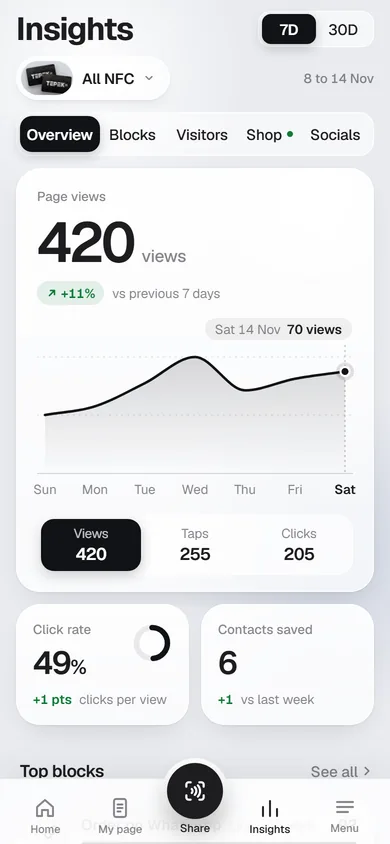
Have a Tepek NFC card as well? Taps are counted on their own as NFC tap, so you can see which works better at your counter. Set up your Tepek NFC card shows how to link one.