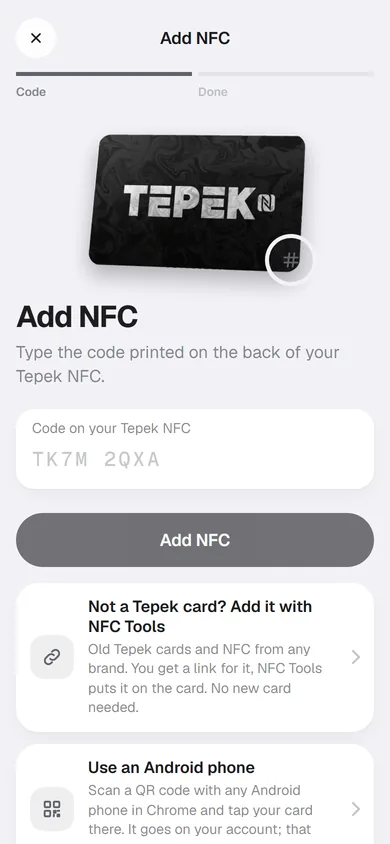
A Tepek card has a small NFC chip inside. Hold it near a phone and the phone opens your page: no app, no QR to scan, no typing. Before that works, the card has to know whose page to open. This guide shows every way to link it, then how to test it, add more, and what to do if one goes missing.
Find the code on the back
Every Tepek card has a code printed on its back: 8 letters and numbers, shown in two groups like K2P7 QC9X. It is the card’s identity, so keep a photo of it. You need either the code or a phone that can tap the card.
Way 1: during Setup
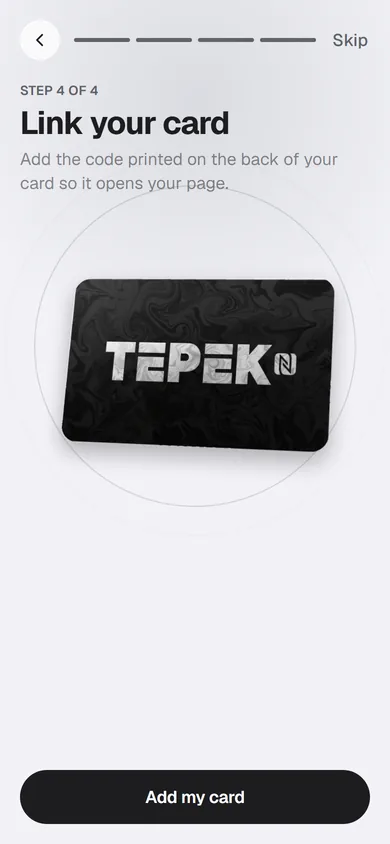
The last step of Setup is Link your card. Press Add my card, type the code and confirm. The screen changes to Card linked! with the code, and from then on every tap opens your page. If you skipped this step, use one of the ways below.
Way 2: tap a new card first
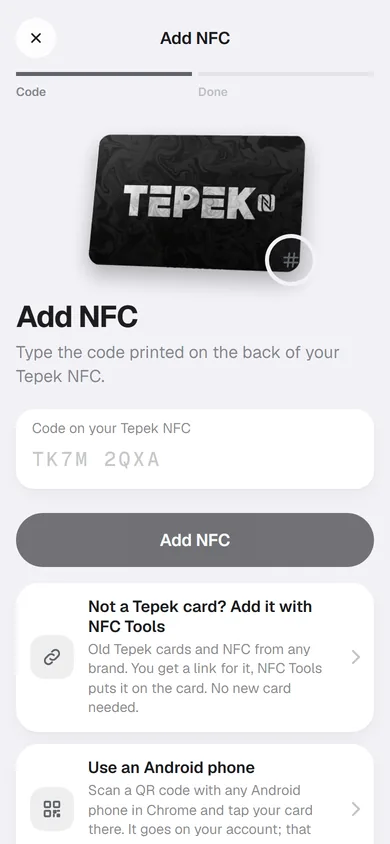
Tap a card nobody has linked yet and your phone opens a page that says Your Tepek card. Press Create my account: Tepek keeps the card’s code while you sign up, and the card step of Setup has it ready for you. Already have an account? Log in from there instead: Add NFC opens with the code filled in, ready to confirm.
Way 3: Add NFC
Signed in, open NFC, then Add NFC. What you see depends on your phone:
- Chrome on an Android phone can read the card itself: when Tepek asks, hold the card to the back of the phone. A Tepek card is linked; any other NFC tag gets your Tepek link written on it.
- Any phone or computer can type the code instead.
- An iPhone or a computer can borrow an Android phone: Use an Android phone shows a QR code. Scan it with an Android phone in Chrome and tap the card there. The card goes on your account, and that phone needs no login.
When it works you see Tepek Card added, with Done and Test tap. If you see Already on another account, the card is linked to someone else; ask them to remove it first.
Test the tap
Press Test tap to open the page the card opens. Then try it for real on someone’s phone. Hold the card flat against the top of an iPhone, near the camera, or the middle of the back of an Android phone. On Android, NFC must be switched on in Settings. Thick or metal phone cases can block the chip, so try without one if nothing happens.
More than one card
Add a second card the same way. Tepek then asks how to set it up: start it empty, or copy another NFC’s page. Each NFC has its own page and its own numbers in Insights, so the card at your counter can open your menu while the one in your wallet opens your contact details. Under Manage NFC you can rename each one.
Tepek cards have no limit. Other NFC tags, such as old Tepek cards or tags from other brands, count separately: up to 3 on Free and 20 on Lifetime. Add your NFC with NFC Tools shows how to put your link on one.
If a card is lost
Open Manage NFC, pick the card and press Pause a lost NFC, or use Pause a lost NFC in the menu. From then on, anyone who taps it sees a page that says the card is paused, not yours. Found it? Open it again and press Resume.
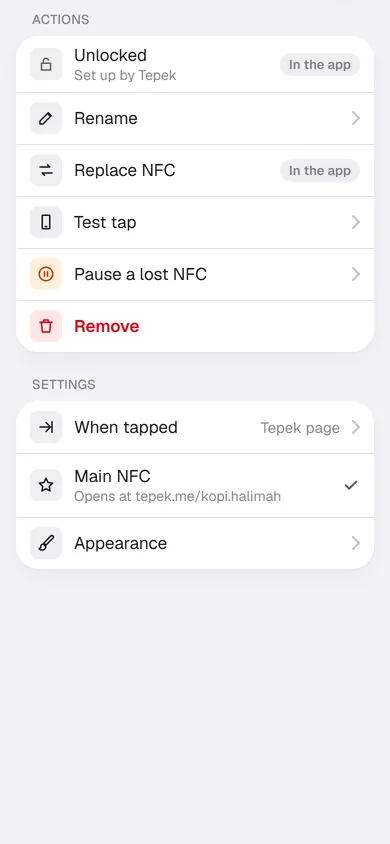
Replace NFC moves everything from the lost card to a new one you hold to your phone, and the old card then says it was replaced. It writes the chip, so it is done in the Tepek app. Lock, which stops anyone changing what a tag opens, is in the app too.
If a card does not work
A card that does not work within 30 days is replaced free; the refund and replacement terms have the details. Before you ask, try another phone: NFC switched off, or a thick case, can be why a tap does nothing.