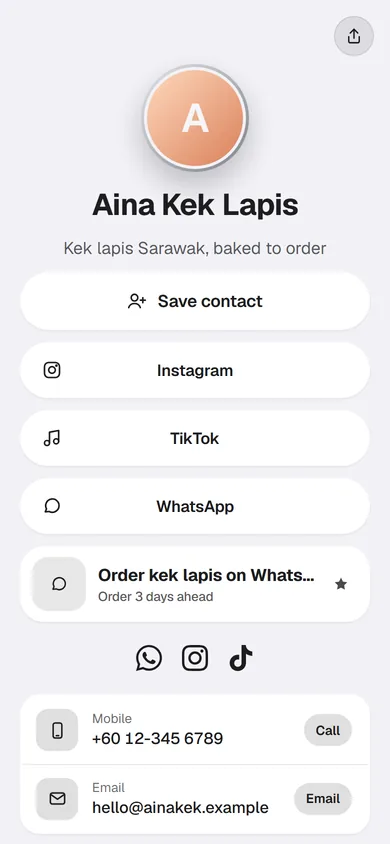
Handing someone a number to type is where contacts get lost: a wrong digit, a name saved as “Kak cake”. A Save contact button puts your details straight into their phone’s contacts, spelled the way you spell them, with your photo. It is free on every plan.
What gets saved
Tepek builds a contact card, the standard vCard file every phone reads, from what is on your page:
- Your name, as your page shows it.
- Your job title and company from Edit profile’s Work section. Without those, the line under your name (“Home baker · Kuching”) is split into a title and a company.
- Your phone number from Edit profile, and every number and email in a Contact block on your page.
- Your public email, if you add one.
- Your profile photo and company logo.
- Your page address, so they can find your page again from your contact.
Only what you have added goes in. Your login email never does.
Fill in your details first
Open Edit profile. Under About, check your name and the Business or title line. Under Work, add a Job title, a Company and a logo if you want them on the card. Under Contact, add your Phone number and, if you like, a Public email. Press Save.
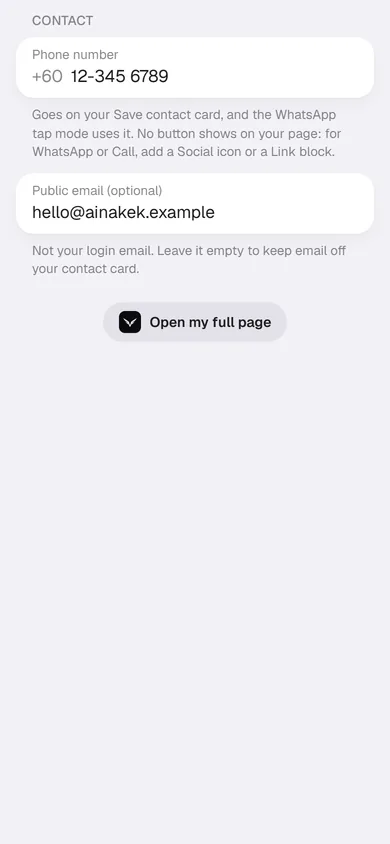
More numbers, like an office line or a fax, go in a Contact block: it shows them on your page as rows, and puts each one on the card too.
Add the button
A page made in Setup already has a Save contact button at the top, so look at your block list first. If yours has none, open My page, then Links & blocks, press Add block and pick Save contact. It adds a full-width button; drag it to where you want it, near the top for a business card page. A page can have one Save contact button, and Add block shows On your page once it is there.
Two other ways get you there: the Personal pack adds a link, social icons, a Contact block and Save contact in one tap, and the Social icons block has a Save contact icon if you prefer a small round button to a big one.
What your visitors see
A visitor taps Save contact and their phone takes over. Phones handle contact cards differently, and a website cannot add a contact by itself, so the last tap is theirs:
- iPhone: the contact opens straight away with your details and photo; they tap Create New Contact.
- Android: the phone downloads the contact card, and your page shows “Tap Open to add the contact”. They tap Open in the download message, then save.
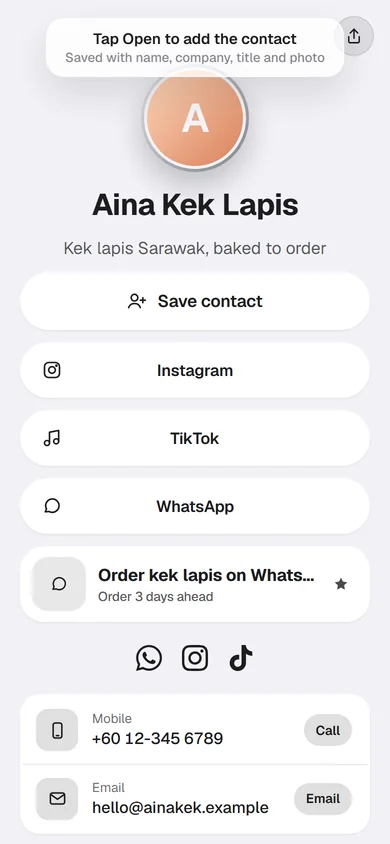
Try it yourself on your own phone and on someone else’s, so you know what your customers see. If a detail is missing, add it in Edit profile and try again: the card is always built fresh from your page.
With an NFC card
A Tepek NFC card and a Save contact button together are a digital business card. Someone taps your card, your page opens, they tap Save contact, and you are in their phone before the conversation ends. Set up your Tepek NFC card shows how to link one.
See how many saved you
Open Insights: Contacts saved on Overview counts the taps on Save contact in the period, next to how it compares with the one before. If people view your page but few save you, move the button higher, or add a photo so they recognise you later.
Keep it current
A saved contact is a copy on their phone, so a change you make later does not reach the ones already saved. When your number changes, update Edit profile at once so new visitors save the right one, and tell your regulars.