Many small sellers in Malaysia take orders on WhatsApp. A button on your page that opens a chat with you, with “Hi, I want to order” already typed, saves your customer the first step. This guide shows the free way with a Link block, then what Lifetime adds for menus and product lists.
How a WhatsApp link works
WhatsApp opens a chat from any link in this shape:
wa.me/60123456789After wa.me/ comes your number with the country code 60 and without the first 0, the plus sign, spaces or dashes. So 012-345 6789 becomes 60123456789.
To type a first message for the customer, add ?text= and the message, with %20 wherever there is a space:
wa.me/60123456789?text=Hi%20Aina,%20I%20want%20to%20orderThe customer still presses send, so nothing reaches you until they choose to.
Make the button (free)
- Open My page, then Links & blocks, and press Add block.
- Pick Link. It goes to the end of your page and opens for editing.
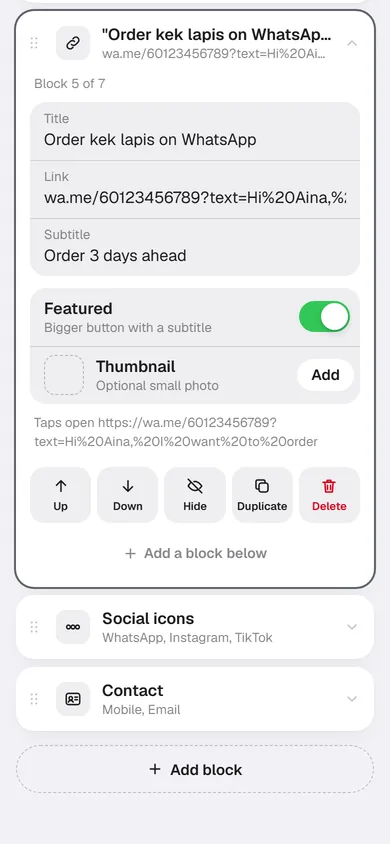
- In Title, write what the button does: “Order on WhatsApp” or “Tempah kek” says more than “WhatsApp”.
- In Link, paste your
wa.meaddress. The line under the block, starting “Taps open”, says where taps will go, so you can check it before anyone else does. - Turn on Featured for a bigger button with a Subtitle, such as “Order 3 days ahead”. You can add a small Thumbnail photo too.
- Drag the block to the top of your page, where people see it first.
The Link field takes full https addresses only and refuses spaces. If it turns red, look for a space in your message and change it to %20. The editor saves by itself, and an unfinished link stays hidden from visitors until it works.
Put your number in Edit profile too
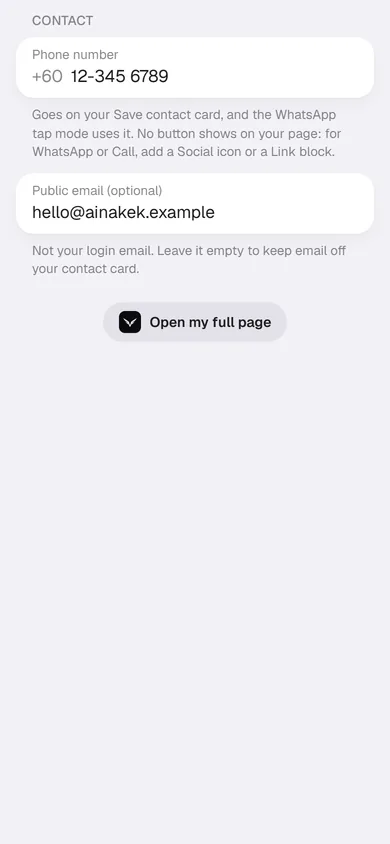
Open Edit profile and fill in Phone number under Contact. That number goes on your Save contact card, and the packs below use it to fill in the WhatsApp button for you. On its own it shows no button on your page: for that you still need a Link block or a WhatsApp icon.
Or a small WhatsApp icon
The Social icons block shows a row of round icons: WhatsApp, Instagram, TikTok and more. It is quieter than a button, so it suits a page where the main action is something else, like a portfolio. A new Social icons block starts with WhatsApp when Edit profile has your number.
With Lifetime: menu and shop orders
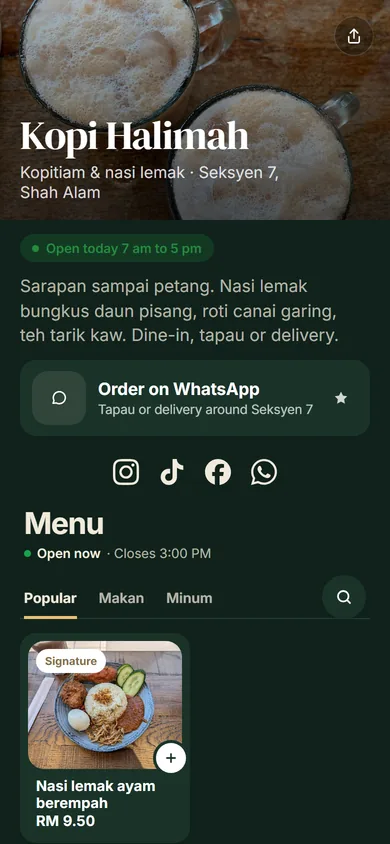
Two packs build the button for you. Food stall adds a menu, opening hours, a location and a featured “Order on WhatsApp” button. Online shop adds a product grid and a featured “Chat on WhatsApp” button. Both fill in the link from the number in Edit profile.
The Menu and Product grid blocks go one step further. Visitors tap + on the dishes or products they want, and a cart builds up at the bottom of the page. When they send it, WhatsApp opens with the whole order written out: each item with its quantity and price from your page, and the total. Your number is never written in the page itself; Tepek adds it only when the order is sent, and sends you a notification about the order.
A menu can send its orders to a different number from the rest of your page. In the Menu block, keep Order on WhatsApp on and type the number, or leave it empty to use the one in Edit profile.
Test it before you share it
Press the button that opens your live page, then tap your new button on your own phone. WhatsApp should open on a chat with your number and your message in the box. Test once from a friend’s phone too: on your own phone, WhatsApp may open a chat with yourself.
See how many people tap it
Every tap on the button counts as a click. Open Insights: Top blocks on Overview shows your most tapped blocks, and the Blocks tab lists every one. If many people view your page and few tap the button, try a clearer title or move it higher. Reading your Tepek Insights explains the numbers.
A few tips
- Keep to one main button, so a visitor does not have to choose between two.
- Say what happens next in the subtitle: “Reply within an hour” or “Order 3 days ahead”.
- Keep the typed message short. Customers add their own details anyway.